Copying and Moving Overlays
Use either of these methods to copy/move overlays within and between SWDs.
 1. Within the Maps Control Bar
To move an overlay from one SWD to another, select the overlay name and drag it to the required position within the target SWD. Related Topics
To copy the overlay rather than moving it, hold down the Control key while dragging.
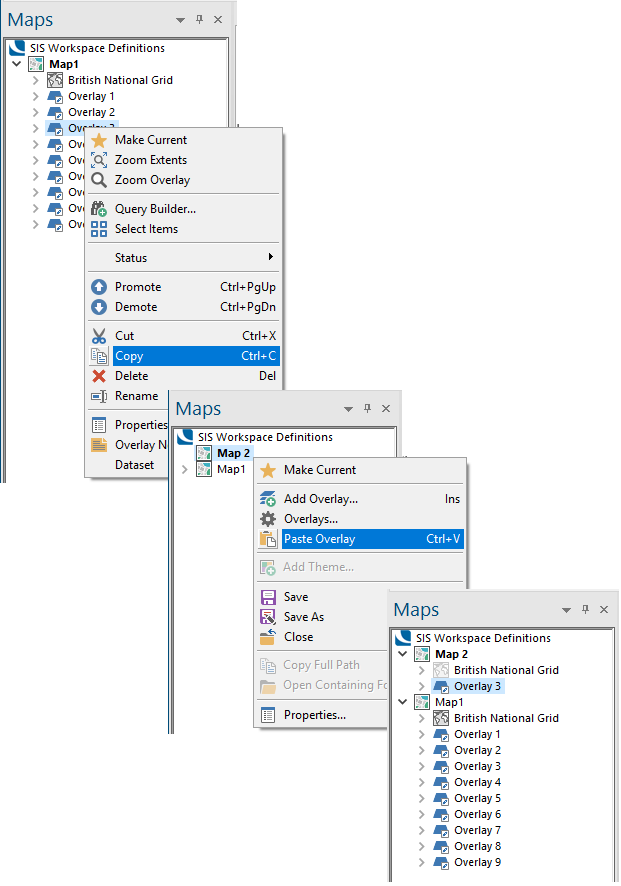
Alternatively you can select the overlay and choose Copy or Cut from the local menu.
Note: If you select Cut you will be asked for confirmation that you want to permanently delete the overlay (unless you have previously checked the Don't show tickbox). Click Yes on this warning as the overlay is temporarily held in the clipboard and can be pasted back into the Maps Control Bar( provided Paste Overlay is done before any other copying operations are carried out).
Now navigate to the target SWD and select Paste Overlay.
2. Using the Overlay Types dialog
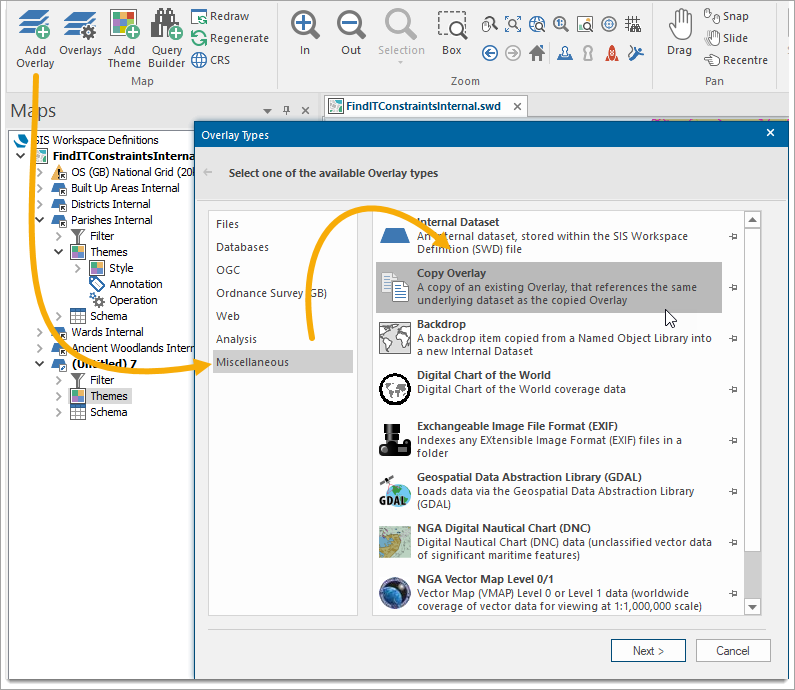
Select Add Overlay to open the Overlay Types dialog.
Click the Miscellaneous tab and select Copy Overlay.
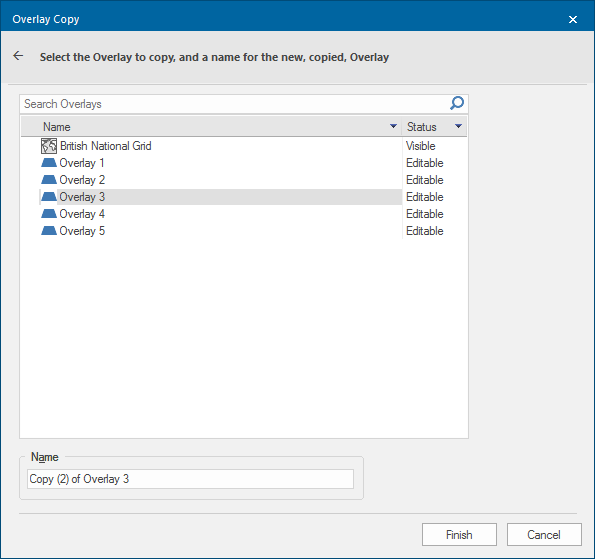
Click Next to see the Overlay Copy dialog. Select the overlay to copy and enter a name or accept the default.
Click Finish.
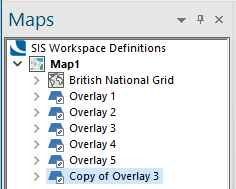
The copied overlay will now appear in the same SWD as the source overlay:
This method copies the overlay to the same SWD. If required the overlay can then be selected and dragged to a different SWD as shown in the Maps Control Bar section above.