Security considerations
Cadcorp recommends using SSL security to set up your SIS WebMap 9.1 server/domain.
This is to allow access from clients where firewall rules are active.
Cadcorp also recommends SIS WebMap has its own SSL certificate applied; please talk to your IT department. Alternatively a certificate can be applied to GeognoSIS through the GeognoSIS Manager. See also GeognoSIS Properties- Security.
For our hosted solutions: – Cadcorp will automatically apply certificates to the servers where SIS WebMap is installed and running.
To set up a https WebMap site:
Once an SSL certificate has been applied, you can begin to access WebMap on a secure HTTPS connection e.g. https://server/SISWebMap9.1/en-gb/Manager
Follow the steps below to ensure the requests sent to GeognoSIS are also made on a HTTPS connection. If left as HTTP, users will receive warnings of ‘mixed content’ or the site could be blocked as unsecure.
1. From WebMap Manager, open Configuration > Layers > Edit Settings and ensure the URL to your base mapping uses the HTTPS connection. (This assumes a base layer has already been added).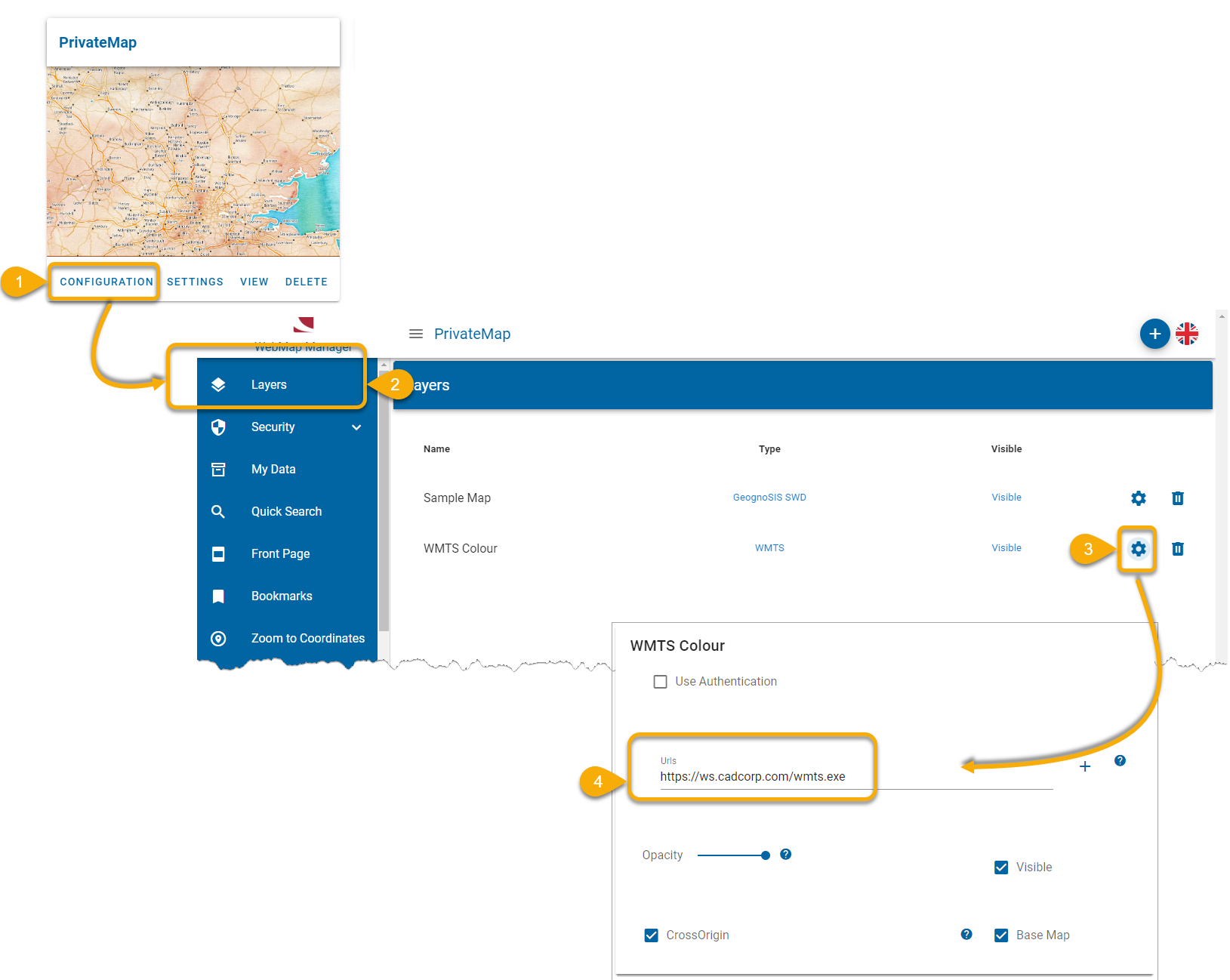
2. Click the action button, select Proxy and change the Proxy Host to pre-fix the current value with the full HTTPS path:

3. In the Manager interface, open General Settings > Site Settings and change the InitialMapLocation.MapUrl and the GeognoSISAPIURL to use the https connection.

4. If using an Embedded Map, ensure your source URL in the embedded script also uses HTTPS.  Related Topics
5. Open the webMapLayersConfig.db file (found in C:\inetpub\wwwroot\SISWebMap9.0\App_Data) in a SQLite Browser. Navigate to the Watermarks table. Change this value from a relative URL to a fully qualified https URL:
