This example explains the processes involved in creating the topology of a fictitious road network. It will step through creating the Link and Node primitives, editing and adding to the network, and defining logical rules such as turning restrictions and one-way streets.
The example is intended to introduce all the relevant topology methods available in SIS, including the settings which can affect the way the topology is created.
You can construct a topological network by drawing the linework as Links, then placing Nodes at the intersections of Links where required. This method gives a great deal of control over the network, but is labour-intensive when compared to other methods described later.
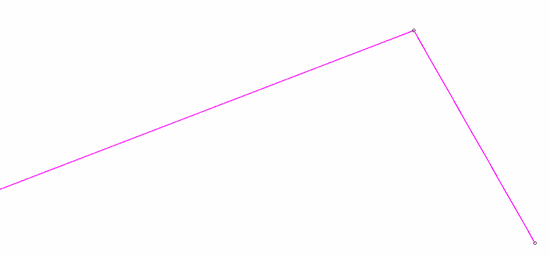
Select Link [Topology-Build] and draw the link just as you would draw a LineString item. Note that when drawing Links you do not have the options to trace existing LineString items or force orthogonal LineString items:
Links have editing handles at their ends and vertices, just as a normal LineString item would have. You will find that a Node has been created at each end of the Link, as a Link cannot exist without starting and ending at a Node.
Now construct two more Links as follows:
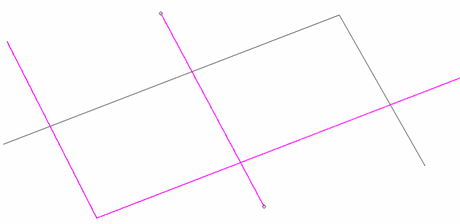
Each of these three Links will have Nodes at their ends, but Nodes are not created at the intersections where Links cross. Before you can manually place a Node at an intersection you will need to change the Automatic property of the Links to True. This will allow the Links to be automatically split at the Node position to form a fully connected network:
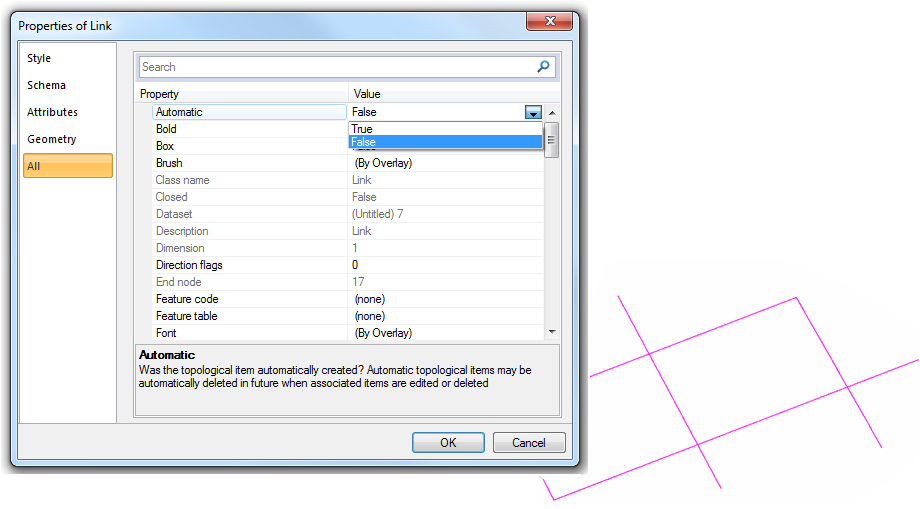
Now select Node [Topology-Build] and place Nodes at the four intersections.
If the Links that would be affected by inserting a Node are not set as Automatic, you will see this message when you attempt to add a Node:
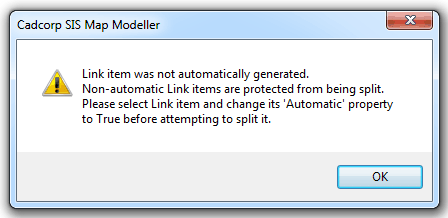
Why would you want to change the Automatic property of a Link? In the example above it has been assumed that the road network is to have intersections wherever Links cross. In a real network it is possible that the Links represent roads which cross at different levels and do not intersect. When merging linework into an existing topological network, the Automatic property determines whether the new linework should automatically insert Nodes where it intersects the existing Links.
Creating a network by drawing each Link and inserting each Node is time-consuming. In most cases it is much easier to have the network automatically generated from simple LineStrings.
Before doing this look at the Automatic TopoLineString creation setting in the Topology section of the Miscellaneous tab of the Options dialog.
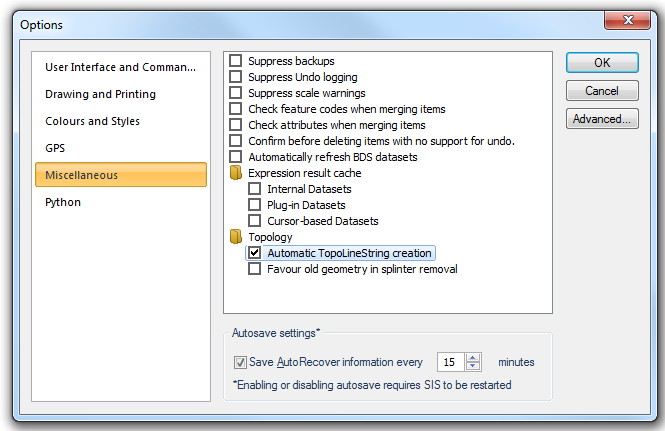
As described before, TopoLineStrings are constructs which represent routes made up of a series of Links. If you are about to create a topological network from existing simple LineString items, you should first decide whether you want the original LineStrings to be “retained” as TopoLineStrings. The network will be created as Links and Nodes, with each original LineString being broken into separate Links, connected by Nodes at each junction.
If the original linework holds attributes such as RoadName, Classification, etc. this attribution will not be carried over to the Links, and the original linework and attribution is lost. If Automatic TopoLineString creation is ticked, A TopoLineString item is created for each original LineString item, with the attribution retained as attributes on this new item.
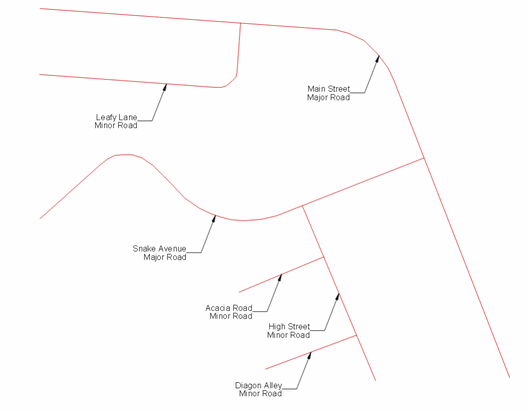
An example of part of a road network is shown below. It is drawn using simple LineString items. The attributes held on each LineString item are shown by a Label Theme.
Make sure Automatic TopoLineString creation is checked in the Topology tab of the Options dialog.
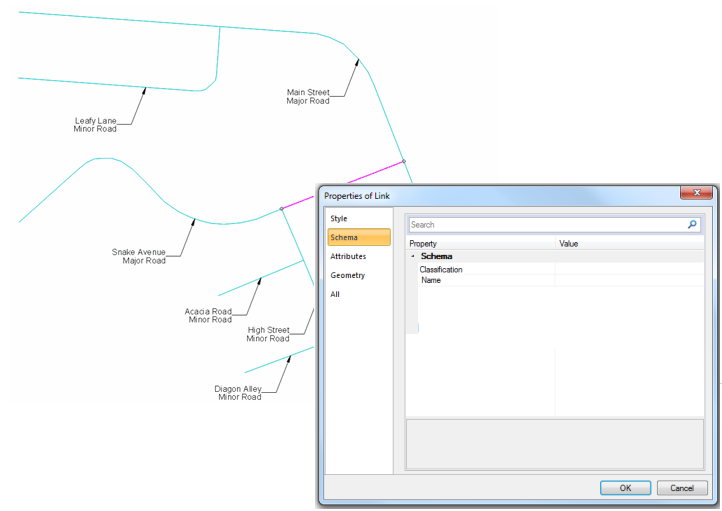
Select Geometry to Topology [Topology-Convert]. The appearance of the road network does not change, but each LineString item, e.g. Snake Avenue, has been split into Links, with Nodes inserted at the ends. In this example, Snake Avenue is split into 2 Links. These Links do not retain any attributes from the original Snake Avenue, however a new item, a TopoLineString, is also created. This new item has no geometry of its own, it is simply a reference to the Item IDs of the Links.
Click on Snake Avenue to select it. You will see that you have selected a Link. Display the properties of the Link and you will see that it does not hold any attributes:
Hover the mouse pointer over Snake Avenue and press the S key on the keyboard (S = Select). The Select Item dialog will be displayed showing two items present.
Item 1:
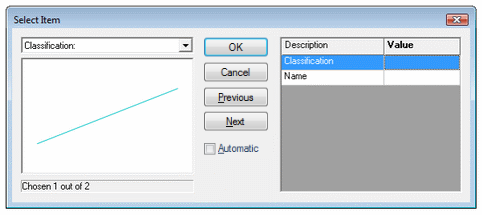
Item 2:
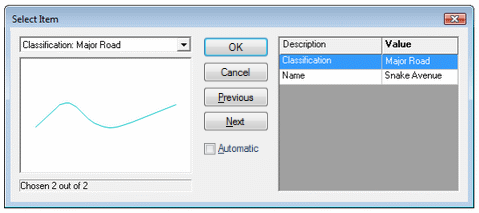
You can see from this example that simply by using Geometry to Topology [Topology-Convert] you can quickly create a topological network from simple LineString data, preserving the “logic” of the original, but giving you the benefits to be had from topology.
If your original linework does not hold any useful attribution, make sure Automatic TopoLineString creation is un-checked in the Topology tab of the Options dialog. This will create the topological network of Links and Nodes without preserving the original structure of LineString items.
Send comments on this topic.
Click to return to www.cadcorp.com
© Copyright 2000-2017 Computer Aided Development Corporation Limited (Cadcorp).