 Search Tips
Installation
Pre-requisites
Mapestry can be installed on any Windows PC, independent of other Cadcorp products. It only requires URL access to a licensed version of Cadcorp Webmap 9.1.64-bit (version 2646 or later).
This is required for licencing and access to Maps.
Note: WebMap and GeognoSIS do not need to be installed locally but you will need their URLs to work with Mapestry.
For optimum web page display, Mapestry also requires 'Microsoft Edge WebView2 Runtime'. This is usually present in most servers but it will be automatically detected and copied (if needed) during Mapestry installation.
Installing Mapestry
- Visit the Downloads page
 on the Cadcorp website.
 - Click Mapestry to run or save the installer. exe or Mapestry.0.xxxx.64.exe. You will find the installer under Applications.
- The xxxx field in the filename indicates the minor version number.
- Double-click the .EXE to begin installation.
- After launching the .exe, you will see this welcome screen. Click Next to begin.
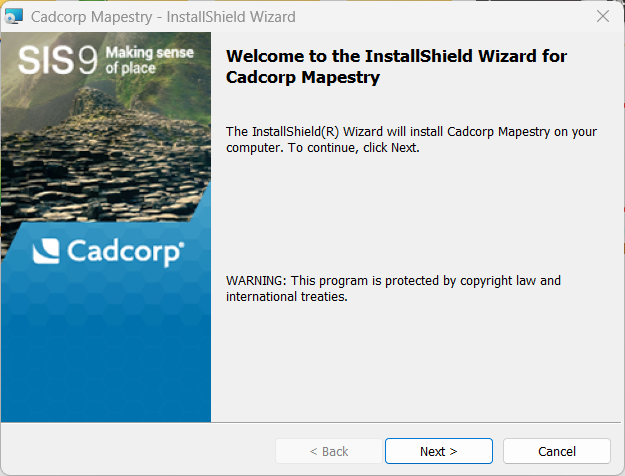
- If prompted install any pre-requsites before proceeding with installation.
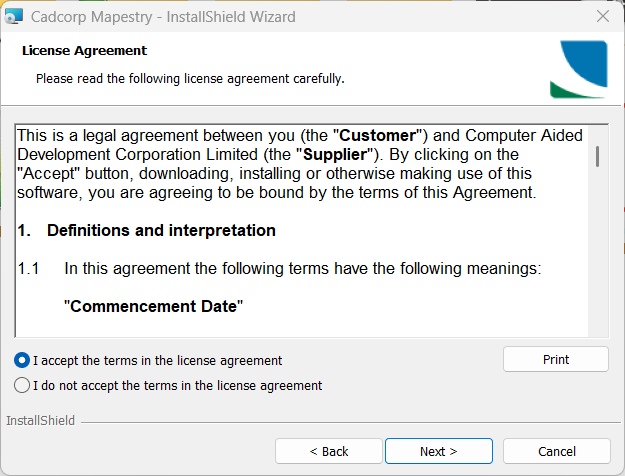
- Please take some time to read the licence agreements. If you wish to print the agreement press the Print button. Select I accept the terms in the license agreement and click Next to proceed.
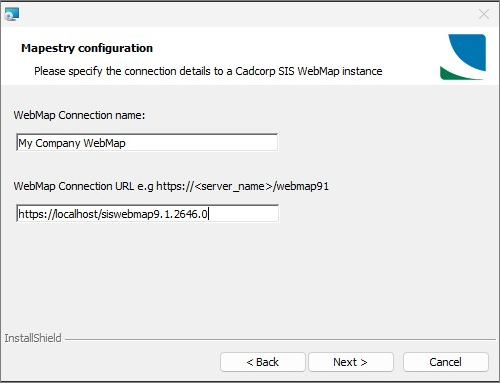
- Enter the connection URL for WebMap. Use an easily-identifiable label for the connection name. Click Next.
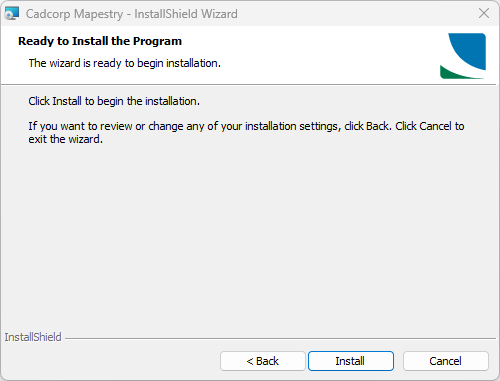
- Click Install to begin installation. Mapestry will be installed in your default Program File folder.
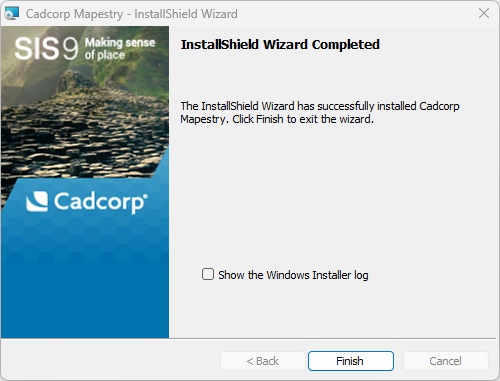
- You will see a confirmation screen when Mapestry has been successfully installed. Click Finish.
TIP: If needed, these URLs can be edited in Mapestry settings. Advanced users can also edit the servers.json file (found in C:\Program Files\Cadcorp Mapestry 9.1\config).