SIS WebMap
One or more interactive maps can be embedded within a Mapestry page. Select Add Block > SIS WebMap.
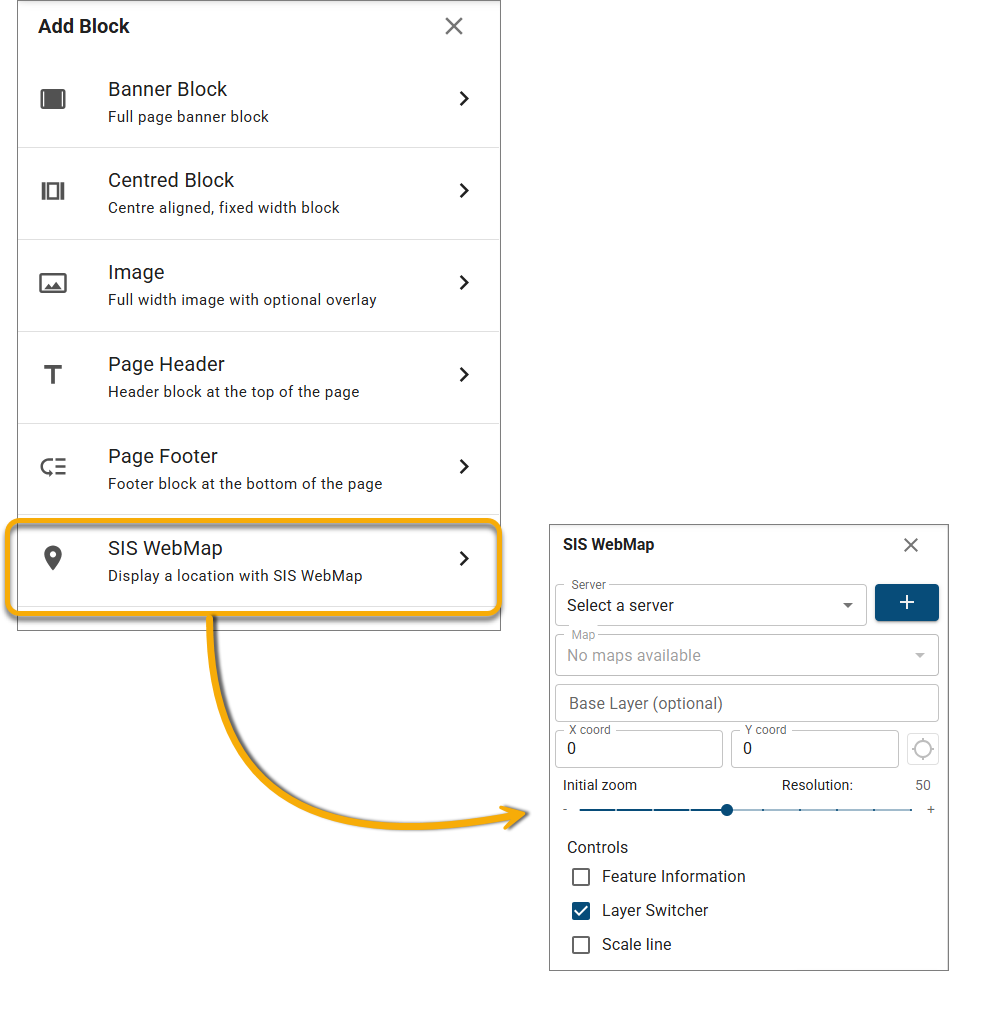
| Field | Description |
| Server | To embed a map, at least one Web Map server should be available. If you have configured any servers during installation, you will see them listed in the drop-down menu. Else press the  button to add a server connection. button to add a server connection. |
| Map | Maps available for use in the configured WebMap server. Select a map from the drop-down menu. If no maps are displayed, ensure the CORS setting is enabled in WebMap Manager (Site Settings > CORS). |
| Base Layer | Select a Base Layer to use (if you have more than one base layer in the original map). Simply type in the name of the layer if you know it or use the Layer Switcher option (in Controls) REMEMBER: Selecting a Base Layer is only applicable for Mapestry; the default layer in the original map will not change. |
| X and Y coords | Enter the X and Y coordinates (if you know them) to open the map at these exact coordinates. You can also use the viewfinder or 'sight'  to click and select any location on the map. to click and select any location on the map. |
| Zoom Level | Use the slider to zoom in or out of the map. This is the maximum level of zoom that a user can display with the "+/-" controls on the published Mapestry page. |
| Controls | Enable controls like Feature information or Layer Switcher if needed.  Related Topics Related Topics |
TIP: For best performance of the zoom controls, we recommend using either the 27700 and 3857 CRS in the original map. See here for more information 